Posts tagged 'Coding'

YAML Builder Is Great For Quick CSS Layouts

Most web designs use a classic header, columns, and footer layout, so there is no point in slaving over the details of the basic structure when you are starting a new design from scratch. YAML Builder makes the process quick and easy with a simple WYSIWYG online tool to build out your starting point.

YAML Builder Visual Layout Tool Screenshot

You start out with a basic three column layout and from there you can customize it to fit your specific needs. Choose the doc type (I prefer HTML 4.0 Strict), optional base elements, and the number of columns to start out with. You can specify the widths of various elements choosing between a static width or liquid layout and the source order of the columns. Finally, the fun can begin by adding specific elements like headings, paragraphs, and lists to complete your basic web page. It should be noted that adding the specific content is not as straight forward as I would have expected. You need to click on the ‘Add +’ toggle in the upper left corner of the element before you can drop in child elements. Throughout the whole process you can click the ‘Toggle View’ button to see a real time preview of the final rendered code. When you are all done click the ‘Get Code’ button and the builder will display the HTML code, the base CSS code, and even an Internet Explorer bug fix CSS in a slick modal pop up so you can be off to a great cross-browser start.

YAML (Yet Another Multicolumn Layout) is an open source CSS framework meant to get you up and coding quickly while reducing the tedious detail work associated with CSS design. Download Squad recently reviewed the Yahoo CSS Grid Builder tool which does a similar thing but is much less polished. The YAML builder also offers a greater flexibility with your design as well as using less code in the end.

If CSS has left you a bit dizzy in the head or you simply want a quick place to start, the YAML builder is the best place to go to.

Steve Gibson’s E-Commerce System

Security fanatic and host of the #1 Tech Podcast (Security Now) Steve Gibson, built his own e-commerce system in assembly language. This came from a need and lack of a 3rd party product that offered the features Steve needed. What really intrigued me while listening to Steve on Security Now #109 was how accessible he made his e-commerce system.

The web was designed with a server-client model in mind. This means a server has no means for keeping state, or what information you have previously sent to it. A server spits out pages and has no means to keep track of who sent what. The classic model to solving this problem involved setting client-side cookies using JavaScript to write and read information specific to that user that can be sent back to the server. Steve is a firm believer that scripting is inheritly evil and didn’t want to rely on his potential customers having JavaScript enabled in order to complete a transaction. Instead, Steve came up with a pretty clever method of keeping track of customers as they go through the checkout process.

Steve’s system collects the basic info on the first page of the process and then sends it to the server for validation like does the provided e-mail address look like an e-mail address and is the credit card number properly entered. Steve then takes the customer to a second page where he asks to confirm their e-mail as well as gathering additional data. The trick to keeping track of the previous data entered without using cookies is the use of a hidden field which Steve fills with the previous data encrypted using a secret key on the server and then digitally signed using a cryptographic hash. The result is all of the users data that is essentially useless outside of the server which can then be sent back to Steve, decrypted, and used to fulfill the order.

Now this might sound a little fishy if it weren’t coming from Steve Gibson himself. But this is the guy who wrote the Ultra High Security Password Generator, which is guaranteed to never give the same password twice and is truly random.

I have always had this idea of creating my own e-commerce site to sell my photography and hearing Steve talk about designing and building his own e-commerce solution was really inspiring. You can listen to the 95 minute podcast or read the complete transcript over at GRC.com/securitynow.

30 Half-Ass Web Development Extensions

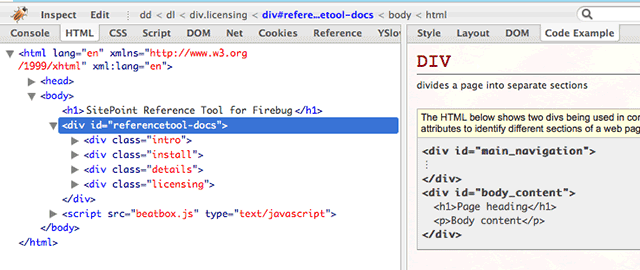
Mashable.com created a list of 30 Firefox extensions for web developers and designers. To be honest, you really only need two: Firebug and the Web Developer Toolbar. These two extensions incorporate nearly every other extension listed, and who wants to manage 28 separate extensions when they could just use two.
Firebug Logo
If you are still digging through source code by hand, then do yourself a favor and get to know Firebug. You’re job will never be the same again.

Dynamically Create Dummy Images At Any Size

Over the weekend I worked on a little micro project to help me during web development work. Have you ever needed a dummy image while laying out a site but opening a graphics app, entering the dimensions, saving it out, and uploading said image to your server seemed like too much work? Yea it was a bother for me to.

That’s why I created DummyImage.com which let’s you spit out a filler image at any size you want. All you have to do is construct a URL like so http://dummyimage.com/300×240. Replace the numbers with whatever you want and my script will spit back a GIF image for you.

300×240 Dummy Image from DummyImage.com

I have even packaged up the source code so you can download it, run it on your own server, mash it to bits or whatever else you want. Comments, suggestions, improvements are always welcome and hopefully this thing won’t take down my server from all of the image generating on the back end.

Happy Dummy Imaging!

Inspiration: SEOStudio.co.uk

This search engine optimization company has a slick website with a royal blue and white theme. The main category navigation has an interesting roll-over effect where the icons not selected become grayed out. A reader can maximize the reading room by hiding the nav area which slides shut thanks to the animation prowess of the Script.aculo.us library.

The only thing I would change would change about SEOStudio.co.uk would be the color of the type. Blue on blue provides a low contrast and to aide readability I would pick something lighter.

Smooth icons with a soft glow as well as the eye-catching color choice make this a site I’ll keep track of for times when I need some inspiration.

seostudio.co.uk Screenshot

Tools To Beautify Your Code

Organized code is easier to read/understand code. When coding you should always keep it as tidy as possible in case someone else (or even you) has to revisit it down the line. Smashing Magazine gathered the best tools to help you clean up your krufty code in various programming languages.

CSS Beautifier

CSS Beautifier looks to be the best CSS optimizer mentioned by Smashing Magazine. You have complete control over the formatting of your style code including the ability to add a new line, space, tab or nothing after pretty much any CSS property. The best feature has got to be the Alphabetizer which will let you sort properties within a selector or the selectors themselves. Be careful with the last options because changing the order of your CSS selectors could change the way your CSS behaves on a site. Order is important in a cascading stylesheet.

My Great Free Online Beautifier for JavaScript does exactly that. There are no options to tweak but this handy tool takes your garbled JavaScript code and lines up the brackets and adds new lines for legibility where needed. Perfect for untangling those long lines of code that were squished down to a single line.

Obviously these two are the tips of the iceberg as Smashing Magazine has more tools for other languages. These two struck me as the most useful to a web developer and that is why they have made it in to my bookmarks of web goodies.

Why I Am Special According to Kevin Rose


I am part of the very select few (web designers/developers). That is why I get paid the big bucks!

How To Set Up Postie With Wordpress

For the past week I have been fiddling with Postie, a Wordpress plugin that allows posting via e-mail or a mobile phone. The following instructions are specific to Wordpress 2.2, Postie 1.1.1, and a DreamHost server. Most information in this walk through can be applied to other configurations but, as a disclaimer, your mileage may vary. I will assume you have a stable Wordpress installation already up and running.

First we need to download and install the Postie plugin. To get the files, go to http://www.economysizegeek.com/?page_id=395 and download Postie version 1.1.1 for Wordpress 2.1 or higher or get Postie version 1.0.1 for Wordpress 2.0. If you’re running an older version of Wordpress you will need to look around for an earlier version of Postie.

Unpack the Postie plugin and upload it to your plugins directory at wp-content/plugins/postie. Login to your Wordpress Admin interface and click on the Plugins section. Postie should now be a listed plugin; simply click Activate to turn it on. If you go to Options and then the Configure Postie subsection you will see the many configuration options to tweak Postie just the way you want it. There are too many options to explain here, besides most of them need no explanation.

In order for Postie to post the e-mails you send it, you need to authorize your e-mail address. Any e-mail not listed here will be rejected with the option for you to be notified so you can see who is trying to mess with your system.

Defining the directories where Postie will save your images to is pretty important. The default location is within your blog installation root, but this was causing some problems when I ran the configuration test later on. I ended up setting the directories in the Postie folder, or /wp-content/plugins/postie/wp-photos/ and /wp-content/plugins/postie/wp-filez/. These seemed to fix the issues running the tests and when I finally posted images on my blog but I don’t know how important it is to change this.

The banned files list lets you strip out the unnecessary clutter mobile carriers tack on when you send an e-mail or removing signatures. It’s best to send an e-mail to yourself just to see what kind fluff gets added to your message.

Image settings and 3GP settings can be set to taste, leaving us at the most important configuration — the Mailserver Settings. Postie supports Pop3, Pop3 SSL, IMAP, and IMAP SSL. However Dreamhost doesn’t have IMAP support in their out-of-the-box PHP installation. If you really want these features you can always compile your own PHP installation but for our purposes we will just stick with basic Pop3.

You need a mail server that will let you authenticate over a non secure connection. This means Gmail is out because you need Pop3 with SSL in order to authenticate your account. DreamHost users can use their own mail server usually at mail.yourdomain.com with the default port of 110. Your mail ID needs to include the domain name at the end like something@domain.com. This step really hung me up since it was never made clear. If you want a super hard to guess mail ID use GRC’s Ultra High Security Password Generator. Nothing like a bunch of random characters to ease the mind of the super paranoid. Click Update Options to save your changes.

Mailserver Settings

Now we should have everything set-up so we can begin to post from the field. To make sure things are working ok, run the Configuration Test. This will let you know if your mail settings are correct and if Postie can find and write to your image and filez directories. Hopefully everything checked out ok here. If they didn’t go back and double check your settings.

Now we can go back and run Postie manually. Before doing this we need to have a message on the mail server for Postie to grab. Hit the Run Postie button and watch in amazement. You’ll know if Postie pulled your message down otherwise you will most likely get the vague message There does not seem to be any new mail. If you do get that message, check your e-mail account to verify there is an unread message sitting there. If that’s not the problem it is most likely an authentication or mail ID issue.

Check your blog to see what Postie did with your current settings. If it is outputting something different than you expected, go back and tweak the settings, send a new message to your e-mail account and run Postie again. I didn’t like the markup coming from Postie so I went into the /wp-content/plugins/postie/postie-functions.php file and cleaned up a little bit.

We are almost done setting up Postie. All that is left is to set-up a CRON Job in order to run Postie at a specified interval. As it is now we would have to login to Wordpress and manually run Postie whenever we wanted to make a post via e-mail. Normally you would have to shell in and type a bunch of archaic commands into a Unix prompt to set this up, but DreamHost makes this easy with their Cron Jobs tool. Login to your DreamHost Panel at https://panel.dreamhost.com and click on Goodies -> Cron Jobs. Click Add New Cron Job and copy and paste the following command, replacing the domain info with your own.

curl http://www.yourdomain.com/your-WP-Directory/wp-content/plugins/postie/get_mail.php

When this CRON Job is run, the server will go to the URL, triggering Postie and publishing your post. Be careful when determining the interval for running the CRON Job because running it too frequently uses CPU cycles and shared hosting companies don’t really like that. Running once an hour should be fine for most needs.

CRON Job

A major drawback of this approach is any special formatting options like DIV containers and special markup will not be included. This is because when you actually login to your Wordpress blog it sets a cookie which then allows the special markup to be included. A way to do this would be to use code like this :

curl -c [cookie file] -d log=[username] -d pwd=[password] http://[your blog’s address]/wp-login.php
now you stored the cookie WP gives you upon login. let’s use it:
curl -s -b [cookie file] http://[your blog’s address]/wp-content/plugins/postie/get_mail.php >>/dev/null

Unfortunately Postie meets my needs thus far and I haven’t figured out how to set up the CRON Job in the previous way. You are on your own now.

I hope this guide has given you some clarity about setting up Postie and if I missed anything please let me know in the comments and I shall update this guide.

Further Reading

The Best Regular Expression Tool on the Net

A regular expression is a powerful tool for matching or manipulating strings. You might be unfamiliar with the term but I bet you have used a regular expression before. Most search and replace tools in text editors use regular expressions to match the text you are looking for and replace it with the text you specify. Using regular expressions might not be that hard but understanding the syntax for writing your own can be quite a chore.

regularexpressiontool.png

Lucky for us Design215.com has an excellent regular expression testing tool complete with a list of syntax properties and detailed examples. Just construct your regular expression, enter some input text to test against and hit the test button. The output code will tell you if your regular expression worked or not so you can make further tweaks.

This little tool can save a lot of time when you need to develop a regular expression for your code.

You should also check out the other handy tools in Design215.com’s toolbox including a character counter, a wordlist maker, a word finder, and URL encoder/decoder.